
As Seen On







Features
Prickle was made to enhance your online shopping experience.
Price Drop Alert
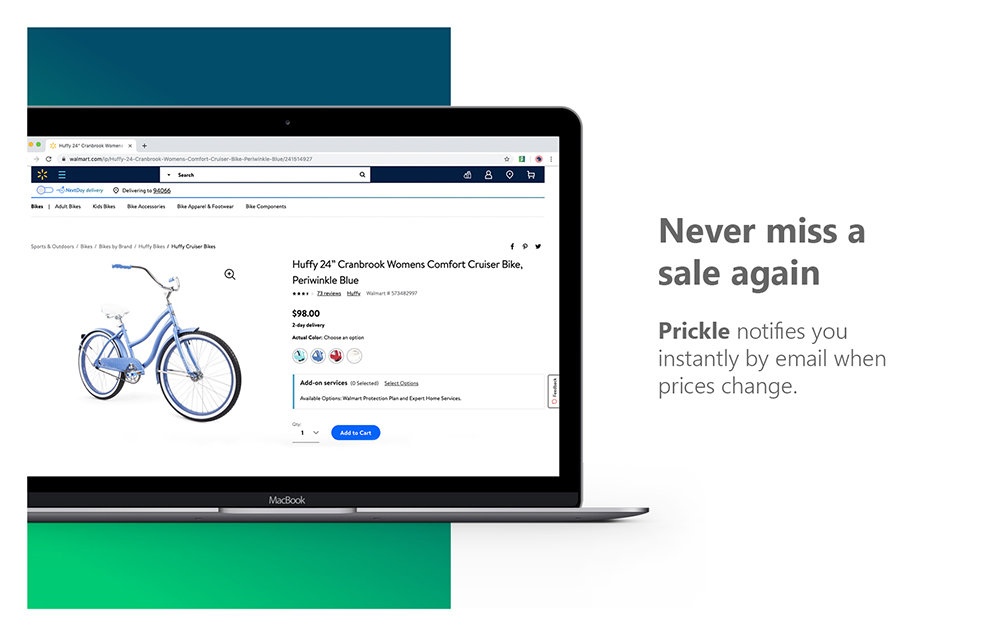
Be notified instantly by email when prices change.
Compatibility
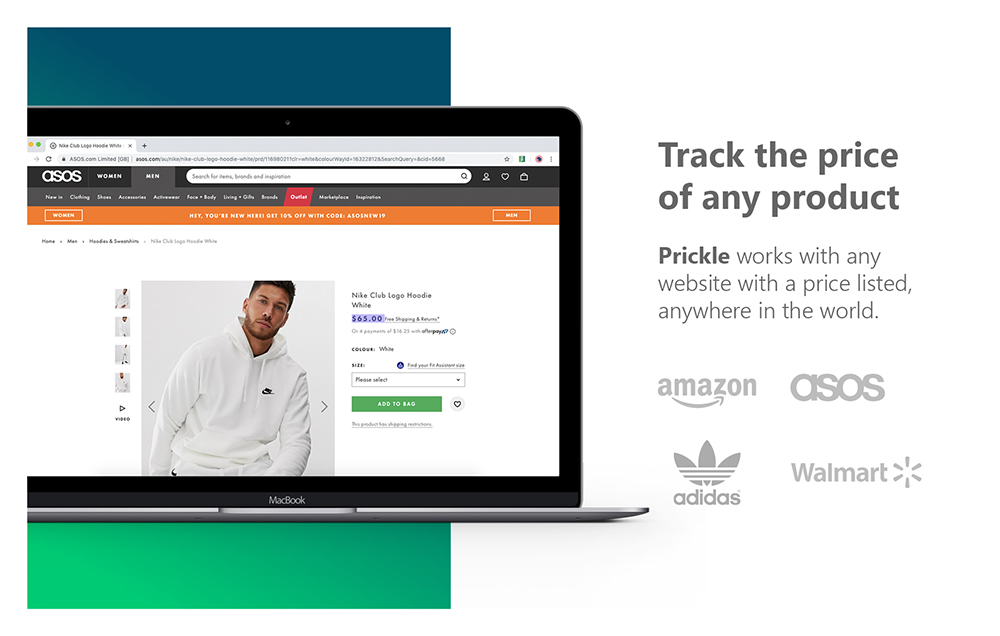
Works with almost any online store including Amazon.
Unlimited Products
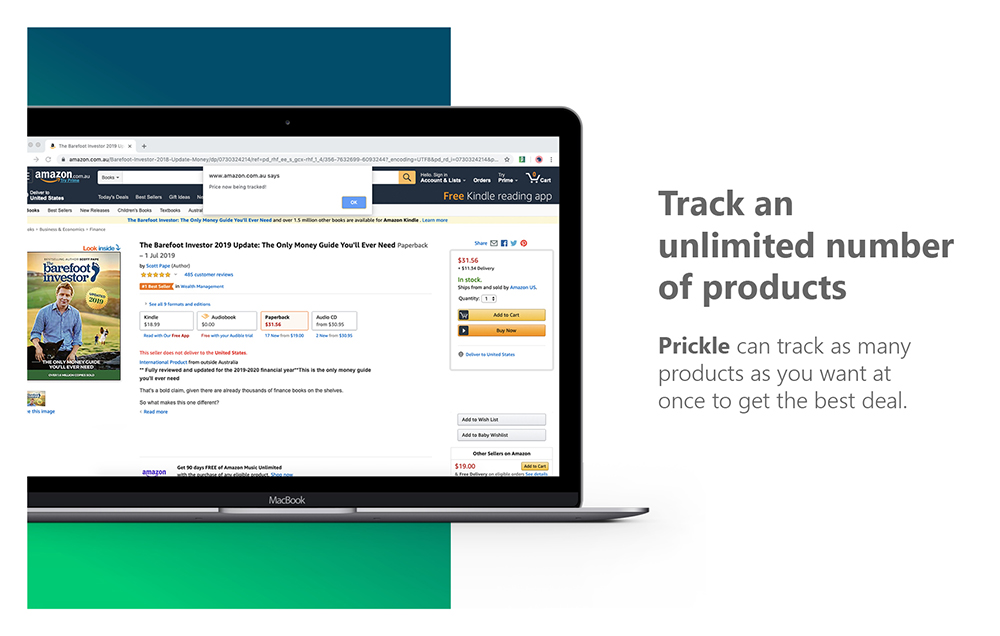
Track unlimited products at once to get the best deal.
Our Extension
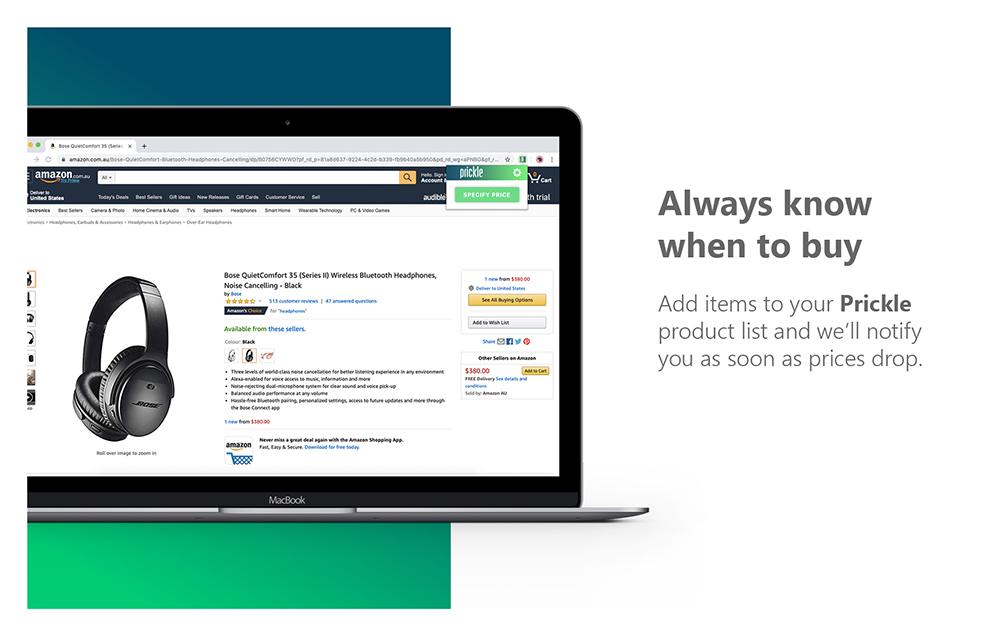
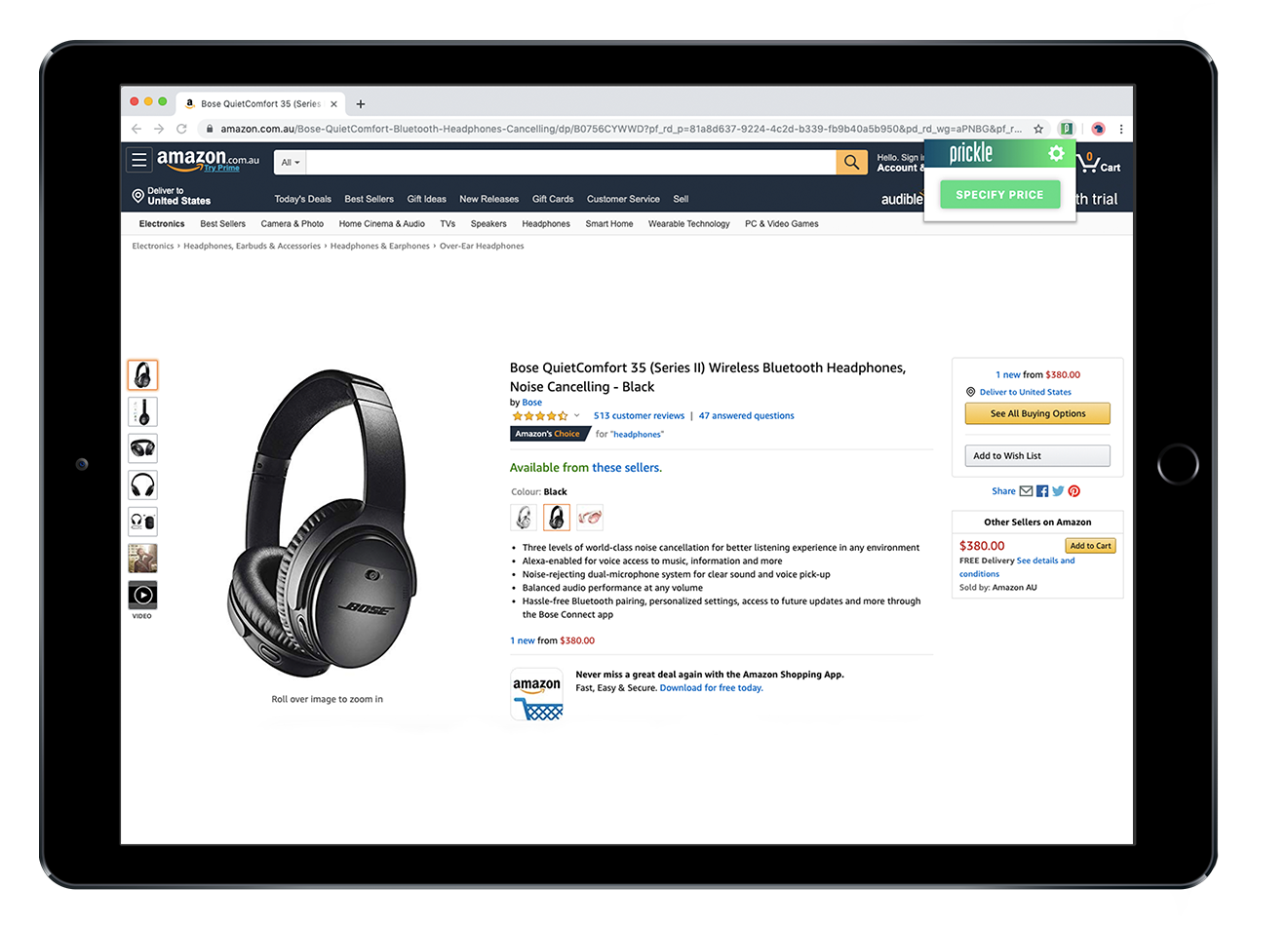
Prickle is simple to use and 100% free. See some screenshots below:
Shop Smarter
Track any product on almost any online store, get email notifications when prices drop and buy when the time is right!
It’s the best way to save money! You can also be notified if the price goes up!
Just select the products you want tracked and have Prickle do the work for you.
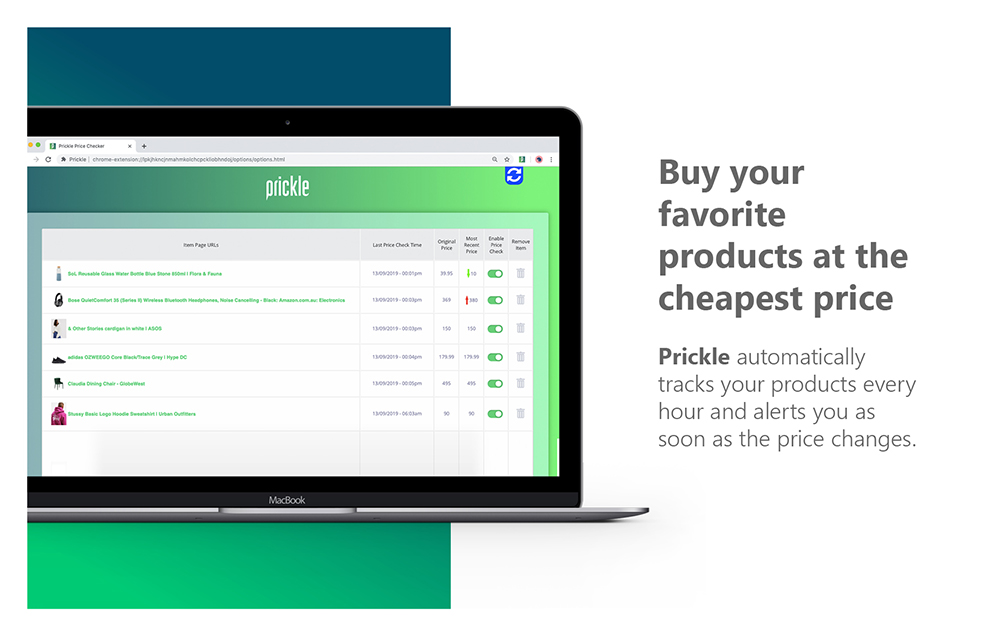
Using our custom-built AI, Prickle will automatically track your products every hour and alert you as soon as the price changes.
ChromeWhat People Are Saying
See what our users think about Prickle

Stephen Esketzis
"Prickle has changed the way I shop online. As someone who is always looking for a bargain, being able to track the items I'm looking to buy in the future is incredibly handy. I've already saved hundreds of dollars by being able to be notified when the sales are on - without having to do anything. I love Prickle!"

Lauren K.
"Prickle is the best extension I’ve ever used! Being an avid shopper, it can be so frustrating when I miss a sale. But with Prickle I’m instantly notified when my products go down in price. It’s amazing!"
Stats
Here some interesting statistics about Prickle:
Users
1000+
Stores
2000+
Products
10,000+
Compatibility
Prickle works on most major online stores including:












FAQs
Take a look at our most commonly asked questions about Prickle below.
How do I sign up?
Getting the best price is easy with Prickle. You can install Prickle from the Chrome Web Store by clicking here.
How does Prickle work?
Now, the fun part - the savings! Once you’ve installed Prickle, you’ll see a small “P” icon when you shop on thousands of your favorite sites.
When you find the product you want tracked, just click the Prickle icon in the upper right corner of your Chrome toolbar and a tab will drop down.
Click “Specify Price” and highlight the price you want tracked. This will automatically add the product to your tracking list.
You can also consult our instructional guide here for step-by-step instructions.
How do I view my full list of products I’m tracking?
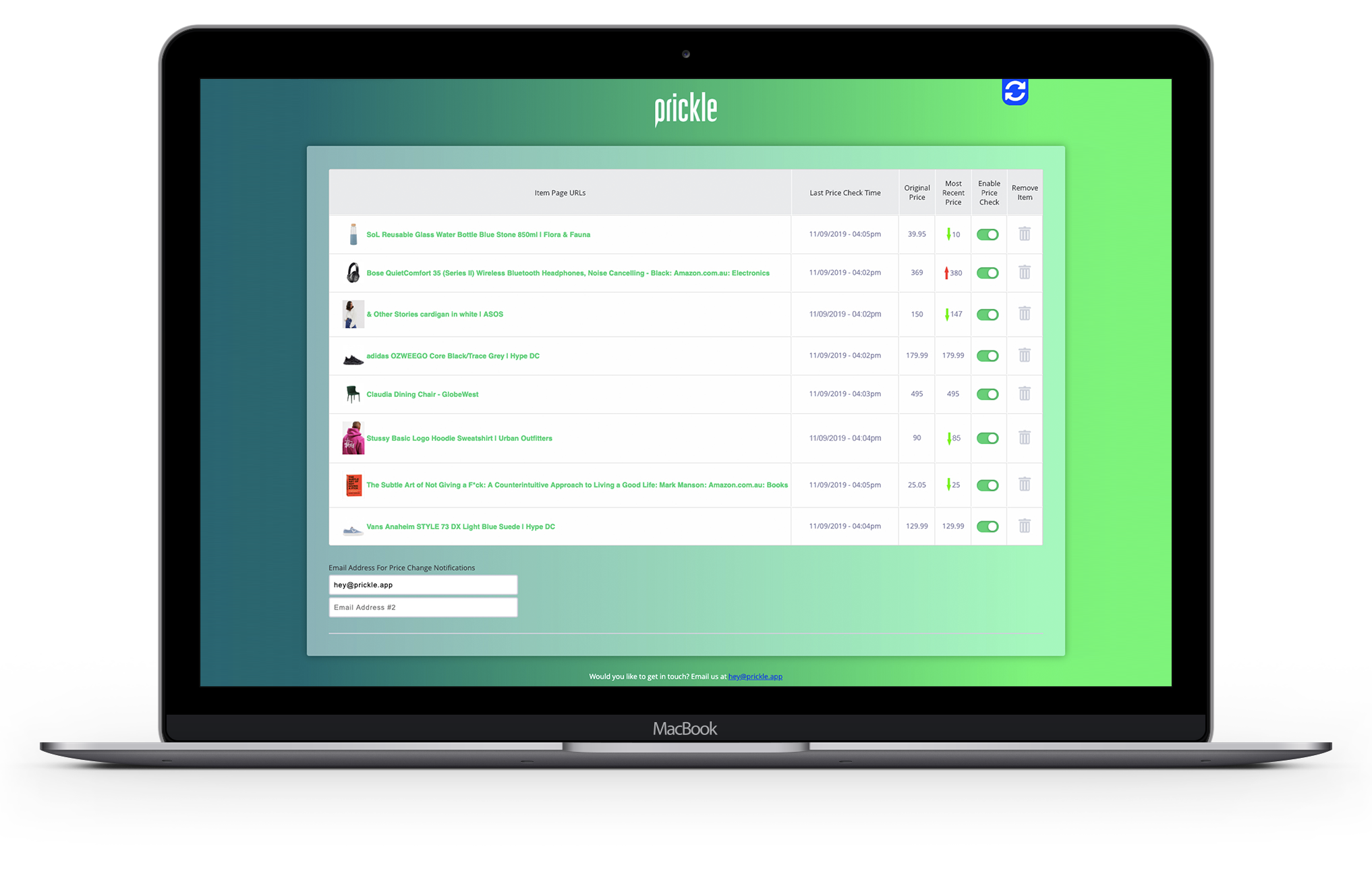
To view your products, just click the Prickle icon in the upper right corner of your Chrome toolbar and click settings. This will redirect you to your product page where you will see your products listed.
You’ll be able to see the price your product was at the time you selected it and beside it will be the updated price along with an increase or decrease symbol.
If you no longer want Prickle to track a product, simply click the trashcan icon on the far right of that product and it will be deleted from your list.
Does Prickle work on mobile devices?
The Prickle extension doesn’t work on mobile devices since most mobile browsers do not allow extensions to run.
Does Prickle work on international sites?
Prickle supports any website with a price listed, anywhere in the world.
If you have any issues, let us know and we'll help solve it as soon as possible.
Does Prickle support all currencies?
Yes! Prickle works on all currencies worldwide.
How many products can I track at one time?
Using Prickle, you can track any number of products.
How often does Prickle track the prices?
Prickle will automatically track your products every hour and alert you as soon as the price changes.
You also have the ability to manually refresh the prices by going to your Prickle page and clicking the refresh button in the top right corner of the page.
How many emails can I subscribe to price update notifications?
You can subscribe up to three email addresses to receive price update notifications.
How much does it cost?
Prickle is a free browser extension that allows you to track the price of any product online and get instantly notified when it changes!
What browsers does Prickle support?
Prickle is a Chrome extension and will only support websites using the Chrome browser.
How do I install Prickle?
We're so glad you are joining the Prickle community! The steps to install Prickle depend on the computer you’re using:
Chrome on Mac
- 1) Follow this link to install Prickle on Chrome.
- 2) Click on ‘Add to Chrome’ and then ‘Add extension’.
- 3) Prickle is successfully installed!
Chrome on Windows
- 1) Follow this link to install Prickle on Chrome.
- 2) Click on ‘Add to Chrome’ and then ‘Add extension’.
- 3) Prickle is successfully installed!
How do I know if Prickle is working?
To make sure Prickle is installed and working on your browser, check for a small “P” icon in the upper right corner of your Chrome toolbar.
If you don’t see the Prickle icon on your browser, make sure you’ve installed the extension.
Now that you have Prickle installed, you can go to a site, add the items you want tracked and Prickle will notify you as soon as the price drops, it’s as easy as that!